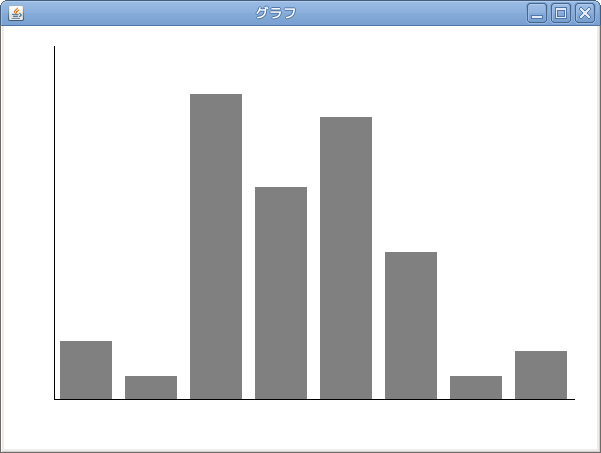
ウインドウが書き換えられるのは隠れていたウインドウが見えるようになったときだけではありません。ウィンドウの大きさをマウスのドラッグなどで変更した時にもpaintComponent()が呼び出されます。
ウインドウの大きさを調べてそれを元に書き換えるようにプログラムをすればウインドウが大きくなると図も大きくなるようにできます。
import java.awt.*;
import javax.swing.*;

public class DrawRectG3 extends JFrame{
    public DrawRectG3() {
        setDefaultCloseOperation(EXIT_ON_CLOSE);
        setTitle("グラフ");
        setLayout(new BorderLayout());
        MyPanel mypnl = new MyPanel();
        add(mypnl, BorderLayout.CENTER);
        mypnl.setBackground(Color.white);
        mypnl.setPreferredSize(new Dimension(400,300));
        pack();
        setVisible(true);
    }
    public static void main(String[] args){
        DrawRectG2 myframe = new DrawRectG2();
    }

    public class MyPanel extends JPanel{
      double[] data={100, 40.5, 520, 360.4, 480.8, 250, 40, 82};
      double max = 600;
      Color c  = new Color(0,0,0);
      Color cf = new Color(128,128,128);
      public void paintComponent(Graphics myg){
         super.paintComponent(myg);

         int pw = getWidth();   //パネルの幅
         int ph = getHeight();   //パネルの高さ
         int yzero= ph-50; //これだけマージンでなく位置
         int left  = 50;    //leftマージン
         int top   = 20;    //topマージン
         int right = 20;    //rightマージン
         int dx = (pw-left-right)/data.length; //1項目の幅
         double rate = (yzero-top)/max;   //値*rate→パネル上の値
         myg.setColor(c);
         myg.drawLine(left,yzero,left+dx*data.length,yzero); //x軸
         myg.drawLine(left,yzero,left,top); //y軸
         myg.setColor(cf);
         for(int i=0; data.length>i ; i++){
             int w = (int)(dx*0.8);
             int h = (int)(data[i]*rate);
             int x = (int)(left+dx*i+(dx-w)/2);
             int y = yzero-h;
             myg.fillRect(x,y,w,h);
         }
       }
    }
}
これだけでOKです。class MyPanelのなかで、getWidth()をすればMyPanelから作られたインスタンス(ここではmypnl)の幅を得ることができます。
詳しくいうとマウスで変更すると幅が変わるのはJFrameを拡張したDrawRectG3のインスタンスであるmyframeなのです。 ですが、レイアウトマネージャーであるBorderLayoutにより、mypanelはmyframeいっぱいまで引き伸ばされます。この引き伸ばされたmypanelの幅を得ていることになります。
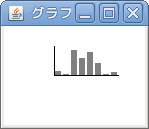
小さくすることも可能です。leftとyzeroを固定している事が分かるでしょう。
上記プログラムをつくりなさい。